How RAM Affects Your Computer’s Speed and Performance
2026-05-26
238
Catalog
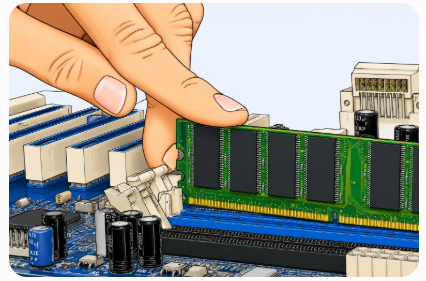
What Does RAM Do in a Computer?
RAM stands for Random Access Memory, but understanding its full name is less important than understanding its purpose. RAM acts as your computer’s short-term memory and temporarily stores the information and programs currently in use.
When you open applications, browser tabs, documents, games, or music, RAM keeps them ready for quick access while they are running. Different types of software rely on RAM to operate smoothly, including web browsers, games, and creative programs.
More RAM generally makes it easier for a computer to handle multiple tasks without slowing down. Without RAM, programs would not have a working space while your computer is turned on. It provides the temporary memory needed to keep active tasks running efficiently.
How RAM Affects Speed and Responsiveness
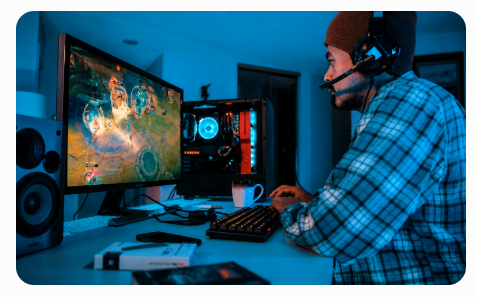
Figure 2. Gaming Performance and Responsive Computer Experience
RAM affects how a computer handles active tasks, especially when several programs are open at the same time. A common assumption is that adding more RAM automatically makes a computer faster, but that is not always true. RAM mainly improves multitasking and helps the system manage active applications more effectively.
RAM becomes important when multiple programs are running simultaneously. With enough RAM, a computer can keep active programs available without frequently reloading data.
Switching between open programs relies heavily on available memory. If RAM is limited, applications that are not currently in use may be moved out of memory, causing delays when returning to them.
With sufficient RAM, switching between tasks often feels more immediate because more applications can remain active in memory.
Games and content creation software often require large amounts of memory because they handle textures, media files, and background processes while running. Enough RAM can reduce interruptions caused by the system constantly moving data in and out of memory.
RAM does not automatically make every operation faster. Tasks such as opening software, loading files, or processing data also depend on factors like the processor and storage device. Instead, RAM primarily helps computers handle multiple active tasks more efficiently and maintain responsiveness during everyday use.
How Much RAM Do You Actually Need
|
RAM
Capacity |
Best
For |
Typical
Use |
|
4GB |
Very basic use |
Light web browsing, email, video
streaming, simple school work, and basic applications. Can feel restrictive
with multiple programs open. |
|
8GB |
Everyday computing |
Online classes, documents,
spreadsheets, video calls, moderate multitasking, and multiple browser tabs.
A common choice for general use. |
|
16GB |
Gaming and heavier multitasking |
Gaming, programming tools,
creative software, and running several applications at once. Often considered
a balanced option for work and entertainment. |
|
32GB |
Advanced workloads |
Video editing, large creative
projects, virtual machines, and demanding software that uses large amounts of
memory. |
|
64GB |
High-end and
specialized use |
High-end
content creation, large development environments, advanced 3D work, demanding
workloads, and intensive multitasking. |
Is More RAM Always Better?
Adding more RAM does not automatically make a computer faster. Having enough memory is important, but increasing RAM beyond what your workload requires may provide little or no noticeable improvement.
There is a point called diminishing returns, where additional memory creates minimal practical benefit. Once a computer already has enough RAM for everyday tasks, extra capacity may remain largely unused.
This is one reason RAM upgrades can be misunderstood. Larger capacity numbers may seem better, but buying far more memory than needed does not always improve everyday use. In some cases, upgrading other components, such as storage or the processor, may provide a more noticeable difference.
The goal is not to install the highest amount of RAM possible. The goal is to have enough memory to match the way the computer is actually used. Once that point is reached, adding more RAM may provide very little benefit.
Signs Your Computer Needs More RAM
A computer does not usually display a message saying it needs more memory. Instead, the signs often appear during everyday use, especially when several applications are running at the same time. When available RAM becomes limited, the system may struggle to keep active tasks running efficiently.
Frequent freezing: The computer briefly stops responding during normal activities, especially when multiple applications are open.
Slow application switching: Moving between a browser, document, video call, or other programs takes longer than expected.
Browser tabs reload unexpectedly: Tabs may refresh or reload when returning to them because the system no longer keeps them active in memory.
Programs become unresponsive: Applications may pause, react slowly, or temporarily stop responding during heavier workloads.
Game slowdowns and stuttering: Games may pause or stutter because the system is struggling to manage memory demands while the game is running.
High memory usage: System monitoring tools may regularly show memory usage near its limit, even during routine tasks.
One symptom by itself does not always mean a computer needs more RAM. However, if several of these signs appear regularly, especially during multitasking, limited memory may be affecting system performance.
RAM or SSD: Which Upgrade Does Your Computer Need?
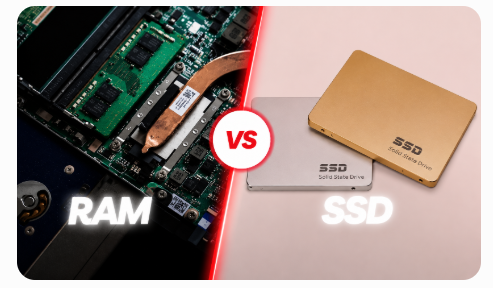
Figure 3. RAM and SSD Comparison
If your computer feels slow, one of the most common questions is whether upgrading RAM or upgrading to an SSD will create the bigger improvement. The answer depends on where the slowdown happens. Each upgrade solves a different problem.
|
Problem |
Upgrade RAM |
Upgrade SSD |
|
Slow
multitasking |
✓ |
|
|
Browser tabs
crash or reload |
✓ |
|
|
Games stutter
during play |
✓ |
|
|
Slow startup
times |
✓ |
|
|
Apps load
slowly |
✓ |
|
|
Still using
an older hard drive |
✓ |
The biggest noticeable improvement comes from identifying the actual bottleneck. If slowdowns happen during active use, RAM may help more. If startup and loading times are the main frustration, storage often creates the larger improvement.
Different Types of RAM
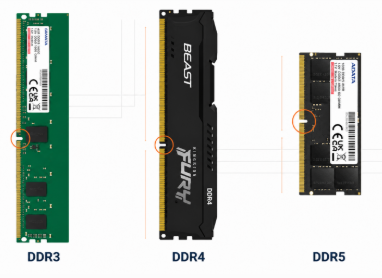
Figure 4. DDR3, DDR4, and DDR5 RAM Generation Comparison
DDR3 vs DDR4 vs DDR5
DDR memory has evolved through several generations, with each version improving speed, efficiency, and capacity. Newer generations are designed to support more demanding software and workloads, but they also require compatible hardware.
|
Type |
Generation |
General
Characteristics |
Best
For |
|
DDR3 |
Older |
Slower and commonly found in
older systems |
Older computers |
|
DDR4 |
Mainstream |
Strong balance of performance and
cost |
Everyday use and gaming |
|
DDR5 |
Newest |
Faster and designed for modern
systems |
High-performance workloads |
DDR4 remains a practical choice for many systems, while DDR5 is becoming more common in newer computers.
Each generation improves on the one before it by offering higher speed, better power efficiency, and support for larger memory capacities. However, RAM generations are not interchangeable. DDR5 memory cannot replace DDR4 memory, and DDR4 cannot be installed in a DDR5-only system.
A computer designed for DDR4 requires DDR4-compatible hardware, while DDR5 systems require hardware built specifically for that generation.
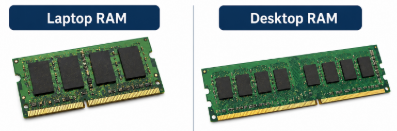
Figure 5. Laptop RAM and Desktop RAM Comparison
Laptop RAM vs Desktop RAM
|
Laptop
RAM |
Desktop
RAM |
|
Smaller physical modules |
Larger physical modules |
|
Often limited upgrade options |
Usually easier to upgrade |
|
Fewer memory slots |
More expansion options |
Desktop computers often provide easier access and greater upgrade flexibility, while laptops may have fewer upgrade options depending on their design.
How to Check How Much RAM You Have
If you want to see how much RAM your device currently has, you can find it in just a few steps. The process varies depending on the device.
1. Windows 11
Open Task Manager by pressing Ctrl + Shift + Esc. Select Performance, then click Memory to view installed RAM and current memory usage.
• Start → Search Task Manager → Performance → Memory
2. macOS
Click the Apple menu in the top-left corner and select About This Mac. The installed memory information appears in the system overview.
• Path: Apple Menu → About This Mac
3. Android
Open Settings, select About Phone, then look for Memory or RAM information. Some Android devices may place this under Device Information or System.
• Path: Settings → About Phone → Memory
4. iPhone
Open Settings, select General, then tap About. Some iPhone models may not directly display RAM information in settings.
• Path: Settings → General → About
Checking your current RAM is a quick way to understand your device before troubleshooting performance issues or considering upgrades.
 ABOUT US
Customer satisfaction every time. Mutual trust and common interests.
ABOUT US
Customer satisfaction every time. Mutual trust and common interests.
function test. The highest cost-effective products and the best service is our eternal commitment.
Hot Article
- LM358 Dual Operational Amplifier Comprehensive Guide: Pinouts, Circuit Diagrams, Equivalents, Useful Examples
- Are CR2032 and CR2016 Interchangeable?
- Understanding the Differences ESP32 and ESP32-S3 Technical and Performance Analysis
- Choosing the Right Battery: A Guide to AG4, LR626, LR66, 177/376/377, SR626, and SR626SW Equivalents
- BC547 Transistor Basics: Pinout, Application Circuits, Alternative/Complementary Models
- NPN vs. PNP: What's the Difference?
- esp32 vs stm32: which microcontroller is better for you?
- What Is a MOSFET and How It Works?
- Electrical Relay Basic: Working Operation, Types and Uses
- PNP Transistors: Structure, Working Principle and Application
 Fleming’s Left-Hand Rule vs Right-Hand Rule in Motors and Generators
2026-05-27
 Automatic Star-Delta Starter for Three-Phase Motors: Wiring, Operation, and Troubleshooting
2026-05-25
Frequently Asked Questions [FAQ]
1. Why can a computer feel slow even when it still has a lot of free storage space?
Free storage does not automatically improve active performance. Slowdowns can happen when RAM does not have enough space to handle current tasks and multitasking.
2. Why does multitasking become difficult when a system has limited RAM?
Multiple programs compete for available memory space. As RAM fills up, switching between tasks can become slower and applications may lag or stop responding.
3. Why do browser tabs sometimes reload unexpectedly when many are open?
This can happen when available RAM becomes limited. The system may remove less active tabs from memory to free space for current tasks.
4. Why does adding more RAM not always improve computer performance?
Once a system already has enough RAM for everyday tasks, adding extra memory may create little or no noticeable difference.
5. How does RAM affect gaming beyond simply increasing speed?
Adequate RAM can help create a smoother experience by reducing interruptions, minimizing stuttering, and improving overall responsiveness during gameplay.
Hot Part Number
 CL31C180GGFNCNE
 UMK325B7105MH-T
 12101U201JAT2A
 GRM1886S1H5R7DZ01D
 TAP106K016DTW
 TAJC105K050H
 HFBR-4513Z
 SI4850EY-T1-E3
 MAX44271AUA+T
 VI-JN4-EX
- RT0402DRE0730RL
- ACS724LLCTR-30AU-T
- IS42S16800F-7TL
- V48C28T150BL2
- VI-J62-CW
- V300A24H500BL
- DD230S18K
- V48B12C250AL2
- VI-J61-CW/S
- ADUM1301ARW
- SN74AHC08D
- TL074ACDR
- FSFR1800XS
- T491A106K010ZTAU00
- TAJC156K010TNJ
- AD8541ARTZ-REEL
- 1ED020I12-BA
- 9LPRS475CGLF
- CY27H010-45ZC
- DAC34SH84I
- HI-8585PSI
- K9F5608Q0C-HIBO
- LCMX0640C-3T144C
- LM3429MH
- M25P16-VME6TG
- M37450M8-178FP
- MAX3082EESA
- MT48LC32M8A2TG-75
- SFH4556
- SSM6N44FE
- AN27053A-PL
- EL2020CN
- KPC357NT
- MB90F562L
- ST92163/NHB
- AT83C26RKTUL
- XC3S1200E-FTG256C
- MSD388USV-V6
- TD62504FNG